


Loading...

BETA

TTMenus

Venue Onboarding Topic 01

Week one: what live means

Define done for week one

Live means guests can open your TTMenus link on mobile, see accurate dishes, and reach you. Screenshots and drafts do not count.

Week one: what live means | TTMenus educational guide

In 30 seconds

  • Write your public menu URL and open it on your phone.
  • List three must-be-true items before you share widely: hours, contact, and at least one real photo.
  • Share the link with one trusted friend and ask what confused them.

Why this matters

Illustrated week-one venue checklist
A quick visual for busy owners.Replace with a real Live TTMenus menu on mobile screenshot when ready.

Onboarding fails when “almost ready” gets shared as ready.

Live on TTMenus means a guest can open the link, trust what they see, and take a next step.## Week-one definition of done

  • Venue name, address, and phone match the shop
  • Hours are current
  • Core categories and prices are published
  • At least a few real dish photos
  • WhatsApp or Phone works from the menu

Example: first-week readiness

Insights

TTMenus Insights

Last 7 days

Onboarding · Readiness

  • Menu views86
  • Items published24
  • Items with photos9
  • WhatsApp taps11

Recommendation

Share after the basics hold

You have enough structure for soft sharing. Add more photos next, but do not wait for perfection before the first trusted guests open the live link.

Example from TTMenus Insights (illustrative sample data).

Data to decisions

What you noticeWhat to do
Link opens but hours wrongFix hours before any public post
Items exist without photosPhotograph bestsellers first
Soft shares get WhatsApp tapsYour path works; widen the share list

The takeaway

Week one is not a brochure redesign. It is a trustworthy live menu guests can use today.
What to do next

  1. Write your public menu URL and open it on your phone.
  2. List three must-be-true items before you share widely: hours, contact, and at least one real photo.
  3. Share the link with one trusted friend and ask what confused them.
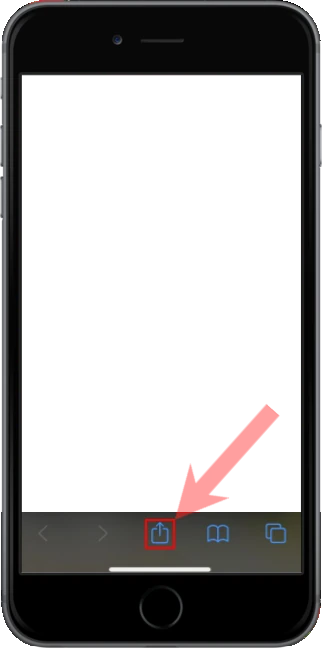
Apple iOS users

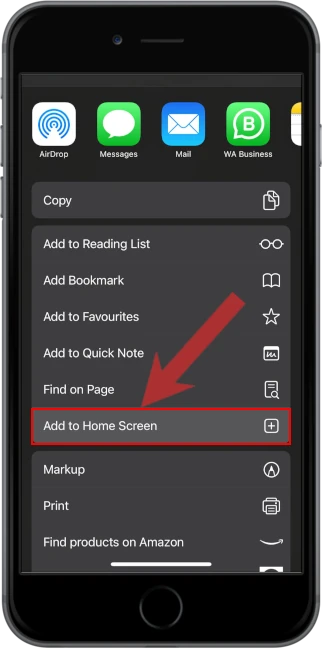
1. Open the menu located at the bottom of the screen

2. Select "Add to Home Screen" from the menu

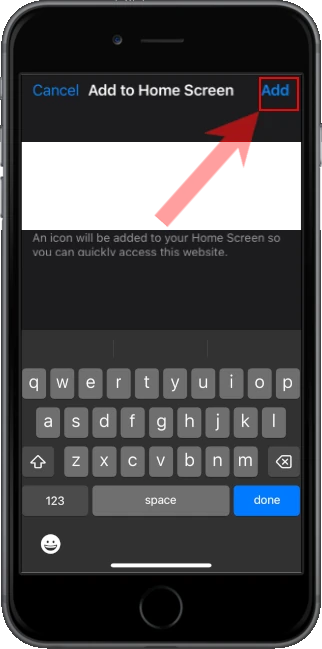
3. Confirm and Add the app to your home screen

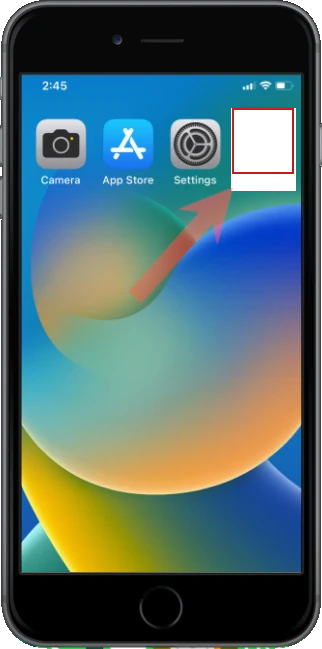
4. Open the app from your home screen