


Loading...

BETA

TTMenus

Getting Found Locally Topic 06

QR codes that land on the live menu

Print the right destination

Table and counter QR codes should open the live TTMenus URL. Test every printed code before you laminate it.

QR codes that land on the live menu | TTMenus educational guide

In 30 seconds

  • Generate a QR for the live menu URL only.
  • Test it on Android and iPhone.
  • Replace any QR that opens Drive folders or PDFs.

Why this matters

Illustrated map pin and local discovery paths
A quick visual for busy owners.Replace with a real Google Business profile next to TTMenus listing screenshot when ready.

A QR is a promise. If it opens a dead file, the table experience feels broken before the drink order.

  • Destination = live TTMenus menu
  • Test after every menu domain change
  • Keep codes large enough for older phones
  • Add a short printed URL as backup

Example

Insights

TTMenus Insights

Last 30 days

Traffic · QR / direct

  • In-venue menu opensRising with QR
  • Item views in-houseUp
  • Failed scans reportedTarget 0
  • Reprint neededIf URL changed

Recommendation

Test before laminate

Scan every new card yourself. A bad QR multiplies frustration across every table.

Example from TTMenus Insights (illustrative sample data).

Data to decisions

What you noticeWhat to do
Guests ask for paper anywayCheck QR contrast and size
Scans open wrong propertyRegenerate from the live URL
Multiple QR versions in drawersThrow out the old stack

The takeaway

QR codes are local distribution. They must open the live menu every time.
What to do next

  1. Generate a QR for the live menu URL only.
  2. Test it on Android and iPhone.
  3. Replace any QR that opens Drive folders or PDFs.
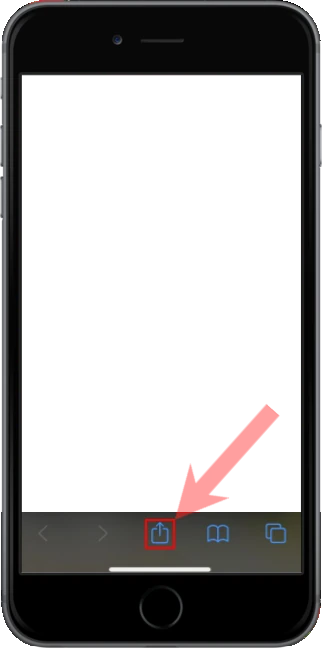
Apple iOS users

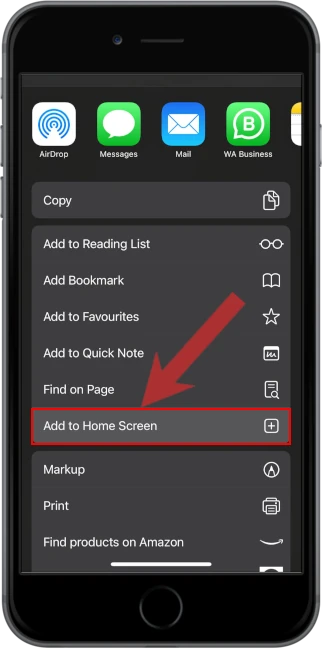
1. Open the menu located at the bottom of the screen

2. Select "Add to Home Screen" from the menu

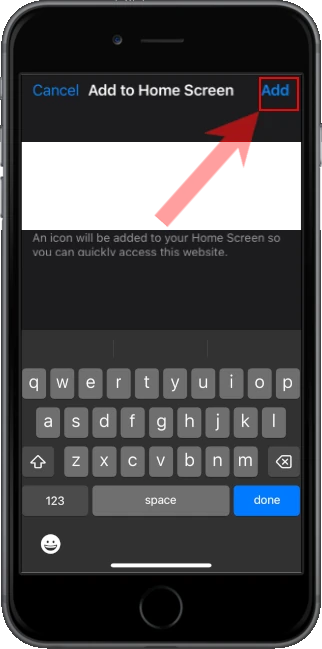
3. Confirm and Add the app to your home screen

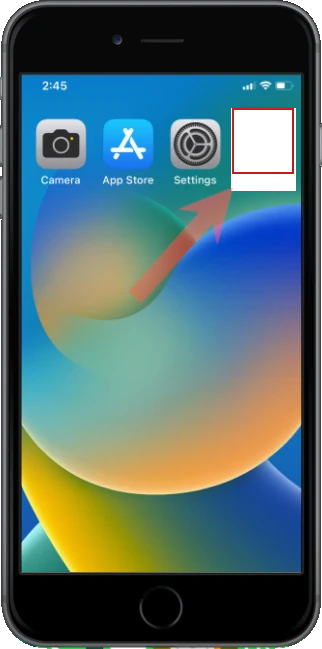
4. Open the app from your home screen