


Loading...

BETA

TTMenus

Venue Onboarding Topic 03

Publish your first live menu

Ship the first menu

Start with core categories and accurate prices. A complete bestsellers set beats a half-finished giant menu.

Publish your first live menu | TTMenus educational guide

In 30 seconds

  • Publish your top categories and bestsellers first.
  • Remove draft items you are not ready to sell.
  • Open the public link on mobile and place a test WhatsApp order path.

Why this matters

Illustrated week-one venue checklist
A quick visual for busy owners.Replace with a real Live TTMenus menu on mobile screenshot when ready.

Waiting for every obscure item delays revenue.

Guests need the dishes they actually order, with prices they can trust.

First publish checklist

  • Categories guests recognize
  • Bestsellers live with prices
  • Sold-out or unfinished items hidden
  • Mobile scroll feels calm, not endless

Example

Insights

TTMenus Insights

Last 7 days

Menu · First publish

  • Categories6
  • Live items28
  • Menu views124
  • Item views390

Recommendation

Complete the sellers first

Expand the long tail after bestsellers look good on mobile and produce contact actions.

Example from TTMenus Insights (illustrative sample data).

Data to decisions

What you noticeWhat to do
Guests ask for missing staplesAdd those next, not rare specials
Long menu, low item viewsHide weak drafts and tighten categories
Prices questioned in WhatsAppAudit every live price today

The takeaway

Publish a truthful core menu.

Expand after guests can order with confidence.
What to do next

  1. Publish your top categories and bestsellers first.
  2. Remove draft items you are not ready to sell.
  3. Open the public link on mobile and place a test WhatsApp order path.
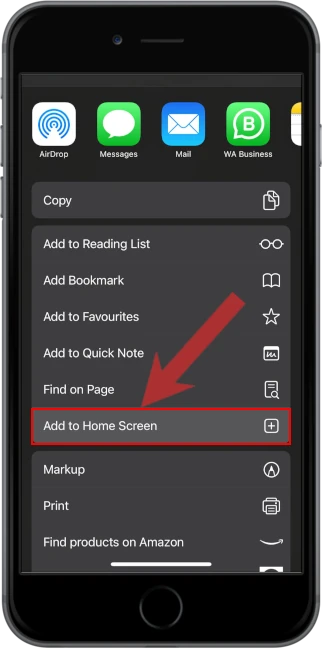
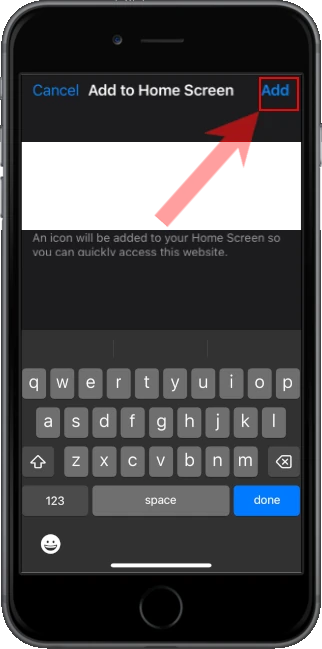
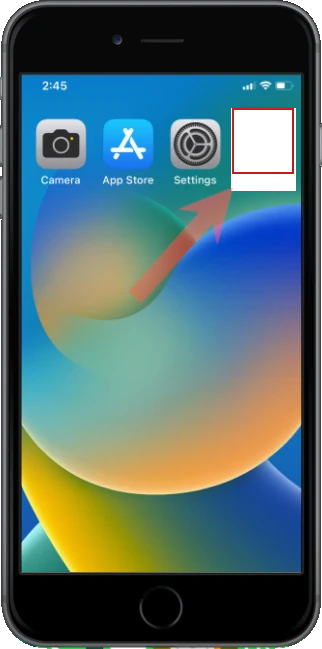
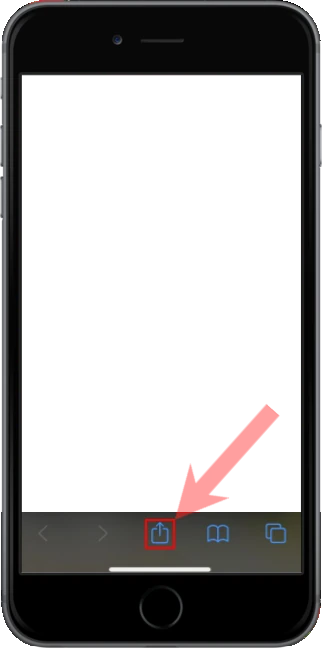
Apple iOS users

1. Open the menu located at the bottom of the screen

2. Select "Add to Home Screen" from the menu

3. Confirm and Add the app to your home screen

4. Open the app from your home screen