


Loading...

BETA

TTMenus

Digital Menu Setup Topic 02

Photos that make dishes orderable

Shoot for mobile

Phone photos in daylight beat fancy shoots that never get uploaded. Show the real plate guests will receive.

Photos that make dishes orderable | TTMenus educational guide

In 30 seconds

  • Photograph your top ten dishes near a window.
  • Crop tight so the food fills the frame on a phone.
  • Replace any dark or watermarked placeholders this week.

Why this matters

Illustrated phone showing a digital restaurant menu
A quick visual for busy owners.Replace with a real Menu item editor with photo and price screenshot when ready.

Guests decide from a small screen. If the photo looks nothing like the plate, trust drops before the first bite.

Photo rules that hold up

  • Natural light over heavy filters
  • One dish per frame
  • Match what you actually serve
  • Prioritize bestsellers, not every garnish shot

Example

Insights

TTMenus Insights

Last 30 days

Menu items · With vs without photos

  • Items with photosAvg 64 views
  • Items without photosAvg 19 views
  • Top photographed dish840 views
  • WhatsApp after photo add+12%

Recommendation

Shoot the sellers first

Photo coverage on top dishes lifts item views faster than decorating rare menu items nobody orders.

Example from TTMenus Insights (illustrative sample data).

Data to decisions

What you noticeWhat to do
High-interest dish, weak photoReshoot that one today
Stock imagesReplace with real plates
Every item has a busy collageUse a single clear hero shot

The takeaway

Honest photos on phones sell more food than delayed perfection.
What to do next

  1. Photograph your top ten dishes near a window.
  2. Crop tight so the food fills the frame on a phone.
  3. Replace any dark or watermarked placeholders this week.
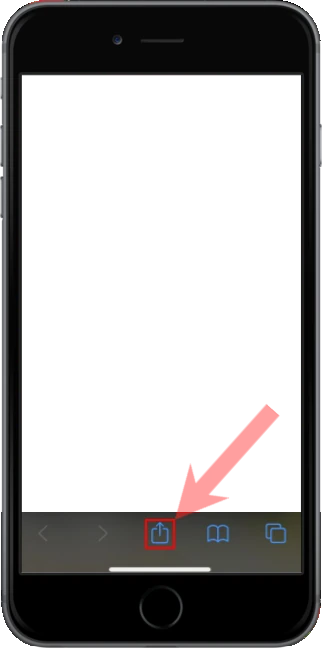
Apple iOS users

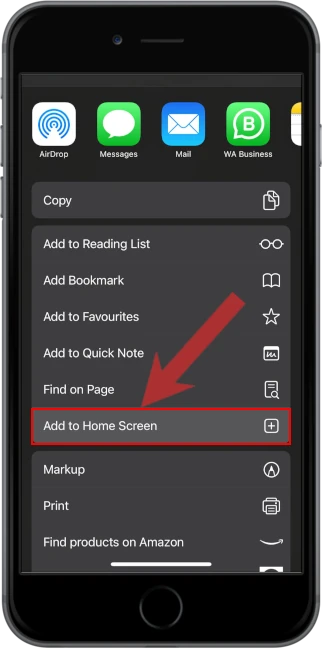
1. Open the menu located at the bottom of the screen

2. Select "Add to Home Screen" from the menu

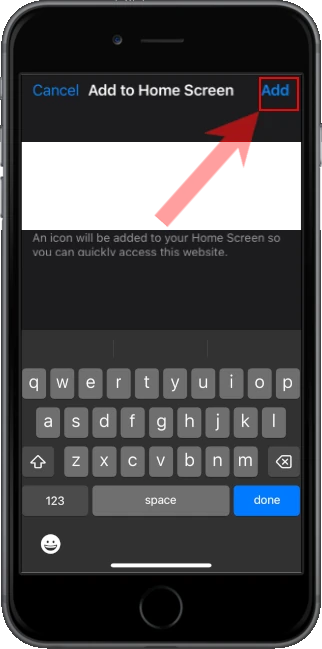
3. Confirm and Add the app to your home screen

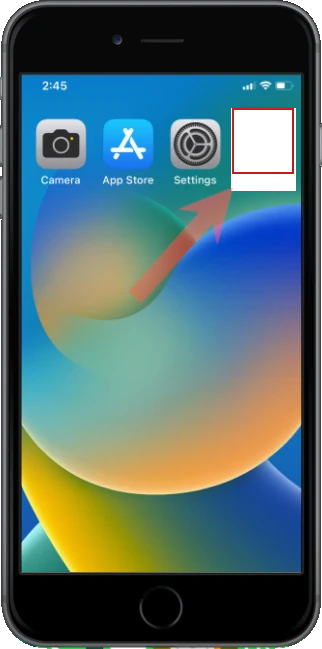
4. Open the app from your home screen