


Loading...

BETA

TTMenus

Getting Found Locally Topic 01

Make your Google listing match TTMenus

Align Google and TTMenus

Name, phone, hours, and website or menu link on Google should match your live TTMenus page exactly.

Make your Google listing match TTMenus | TTMenus educational guide

In 30 seconds

  • Open Google Business and TTMenus side by side.
  • Match name, phone, address, and hours.
  • Point the profile link to the live menu URL.

Why this matters

Illustrated map pin and local discovery paths
A quick visual for busy owners.Replace with a real Google Business profile next to TTMenus listing screenshot when ready.

Guests trust Google first, then your menu. If the two disagree, they believe neither.

Match these fields

  • Business name
  • Phone
  • Address
  • Hours
  • Link to the live TTMenus menu

Example

Insights

TTMenus Insights

Last 30 days

Traffic sources · Google

  • Google visits218
  • Menu views190
  • Directions71
  • Phone44

Recommendation

One link from Google

Send Google profile traffic to the live menu so discovery becomes dish views, not a dead homepage.

Example from TTMenus Insights (illustrative sample data).

Data to decisions

What you noticeWhat to do
Google traffic with quick exitsCheck hours and link target
Phone from Google, wrong lineUpdate both listings
Name mismatchStandardize public naming

The takeaway

Google and TTMenus should tell the same story. Then local search becomes menu opens.
What to do next

  1. Open Google Business and TTMenus side by side.
  2. Match name, phone, address, and hours.
  3. Point the profile link to the live menu URL.
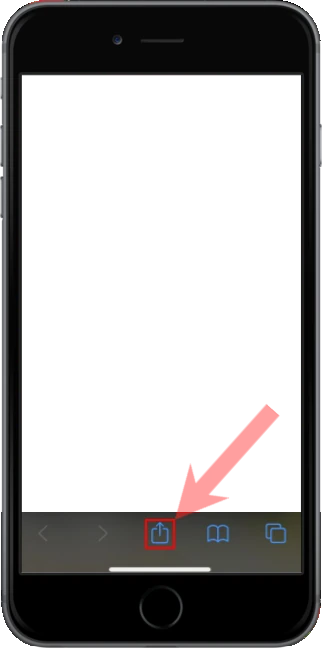
Apple iOS users

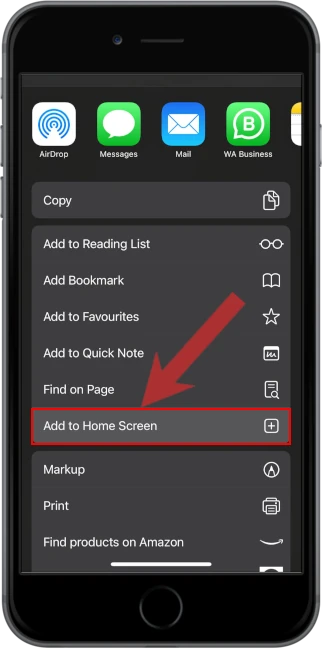
1. Open the menu located at the bottom of the screen

2. Select "Add to Home Screen" from the menu

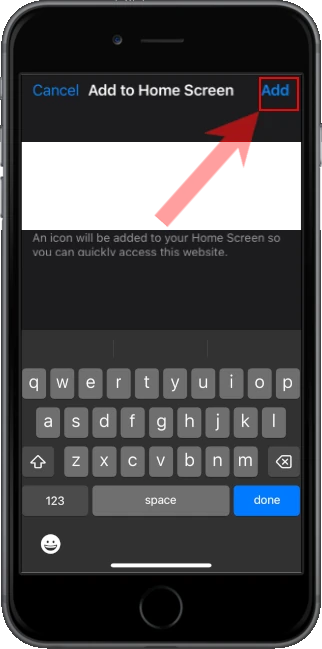
3. Confirm and Add the app to your home screen

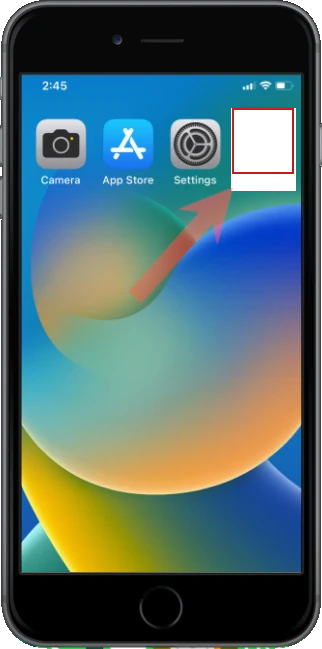
4. Open the app from your home screen