


Loading...

BETA

TTMenus

Digital Menu Setup Topic 01

From PDF to a live TTMenus menu

Leave the PDF behind

A PDF is a file. A live menu is a product guests can open, search, and tap. Migrate once, then stop sending the old file.

From PDF to a live TTMenus menu | TTMenus educational guide

In 30 seconds

  • List every place you still send a PDF or screenshot.
  • Publish the same items on TTMenus with prices.
  • Replace each old file link with the live URL the same day.

Why this matters

Illustrated phone showing a digital restaurant menu
A quick visual for busy owners.Replace with a real Menu item editor with photo and price screenshot when ready.

PDFs pinch on phones, go stale, and cannot show sold-out states.

A live TTMenus menu can.

Migration order

  1. Bestsellers and core categories
  2. Prices and contact path
  3. Photos
  4. Delete or unpublish the PDF everywhere

Example

Insights

TTMenus Insights

Last 30 days

Traffic · After migration

  • Menu views2,416+28% vs PDF period
  • Item views5,102
  • WhatsApp186
  • Avg time on menuHigher on live

Recommendation

Retire the file

Once the live menu matches the shop, remove PDF links from bios and WhatsApp replies so guests never land on yesterday’s prices.

Example from TTMenus Insights (illustrative sample data).

Data to decisions

What you noticeWhat to do
Staff still attach PDFsGive a saved reply with the live link
Live menu missing lunch itemsMigrate that section next
Guests say “send the menu”Reply with the URL, not a photo album

The takeaway

Migrate to live once.

Then make the PDF impossible to find.
What to do next

  1. List every place you still send a PDF or screenshot.
  2. Publish the same items on TTMenus with prices.
  3. Replace each old file link with the live URL the same day.
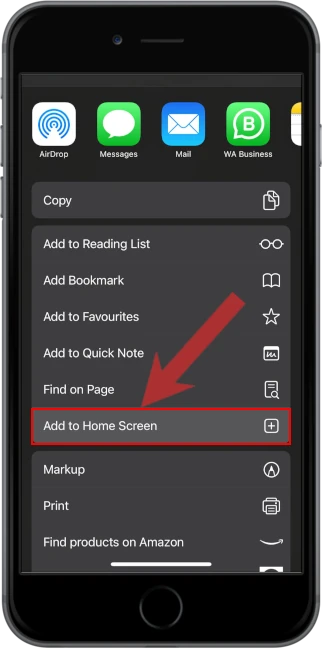
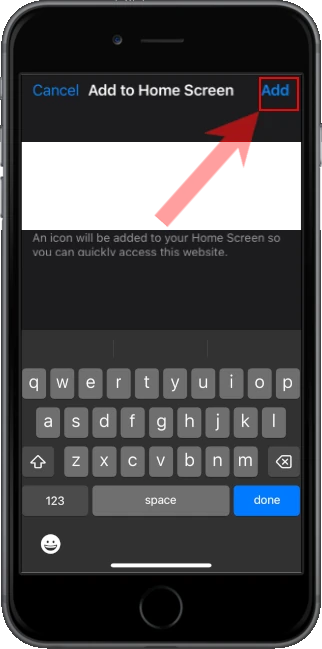
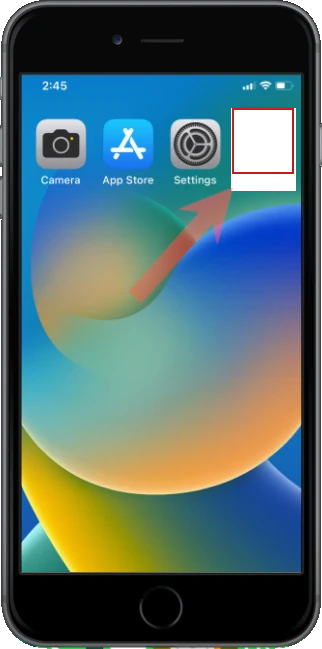
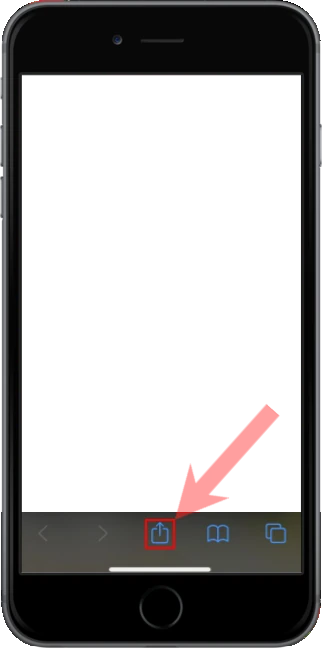
Apple iOS users

1. Open the menu located at the bottom of the screen

2. Select "Add to Home Screen" from the menu

3. Confirm and Add the app to your home screen

4. Open the app from your home screen