


Loading...

BETA

TTMenus

Venue Onboarding Topic 02

Claim and confirm venue details

Lock venue facts

Name, address, phone, and map pin must match Google and your shop sign before you market the menu.

Claim and confirm venue details | TTMenus educational guide

In 30 seconds

  • Compare TTMenus name, phone, and address to Google and your storefront.
  • Open Directions from the menu and confirm the pin.
  • Fix any mismatch the same day.

Why this matters

Illustrated week-one venue checklist
A quick visual for busy owners.Replace with a real Live TTMenus menu on mobile screenshot when ready.

Wrong details destroy trust faster than a missing photo.

Guests who call the wrong number or drive to the wrong pin do not come back to browse again.## Confirm these four

  1. Public venue name
  2. Phone and WhatsApp number
  3. Address text
  4. Map pin

Example

Insights

TTMenus Insights

Last 30 days

Visitors · Contact actions

  • Phone94
  • WhatsApp186
  • Directions71
  • Bounce after DirectionsHigh risk if pin wrong

Recommendation

One source of truth

Make TTMenus match Google and the shop. Then every bio and WhatsApp reply can safely send the same live link.

Example from TTMenus Insights (illustrative sample data).

Data to decisions

What you noticeWhat to do
Directions high, complaints about locationFix the pin and address text
Phone taps with no answerUpdate to the staffed line
Name differs across appsStandardize the public name

The takeaway

Venue details are not paperwork. They are the first product guests test.
What to do next

  1. Compare TTMenus name, phone, and address to Google and your storefront.
  2. Open Directions from the menu and confirm the pin.
  3. Fix any mismatch the same day.
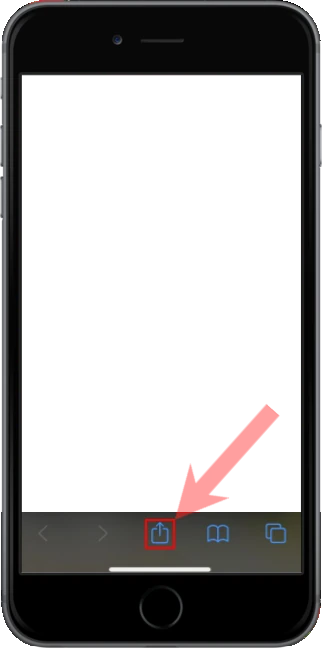
Apple iOS users

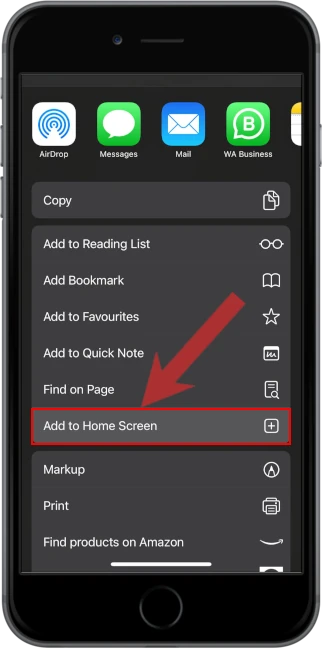
1. Open the menu located at the bottom of the screen

2. Select "Add to Home Screen" from the menu

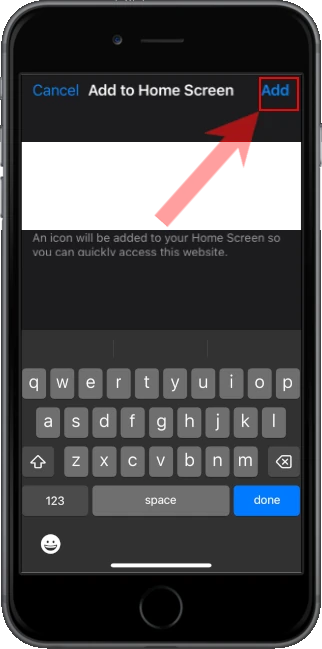
3. Confirm and Add the app to your home screen

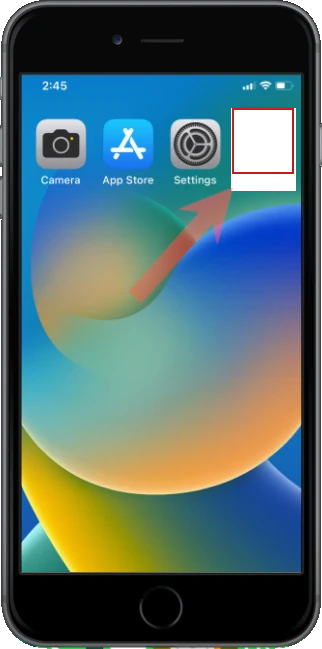
4. Open the app from your home screen