


Loading...

BETA

TTMenus

Venue Onboarding Topic 04

Add photos and your first special

Make the menu visual

Photograph bestsellers, then publish one clear special on the live promotions section before you shout about it.

Add photos and your first special | TTMenus educational guide

In 30 seconds

  • Shoot your top five dishes in natural light.
  • Upload those photos to the live items.
  • Publish one first-week special with price and end time.

Why this matters

Illustrated week-one venue checklist
A quick visual for busy owners.Replace with a real Live TTMenus menu on mobile screenshot when ready.

Text-only menus underperform on phones. One honest special gives new guests a reason to tap today.

Week-one creative minimum

  1. Photos on bestsellers
  2. One promotion with a clear offer
  3. Special live on TTMenus before social posts

Example

Insights

TTMenus Insights

Last 7 days

Promotions · First special

  • Items with photos12
  • Promotion impressions210
  • Promotion clicks48
  • WhatsApp17

Recommendation

Lead with a real dish shot

Your first special should open to a photographed item. Guests decide faster when the offer looks like food, not only text.

Example from TTMenus Insights (illustrative sample data).

Data to decisions

What you noticeWhat to do
Special clicks, weak item viewsLink the promo to the exact live dish
Photos only on obscure itemsReorder effort to bestsellers
Social posts use screenshotsSwitch to the live promotions link

The takeaway

Photos and one honest special make a new menu feel open for business.
What to do next

  1. Shoot your top five dishes in natural light.
  2. Upload those photos to the live items.
  3. Publish one first-week special with price and end time.
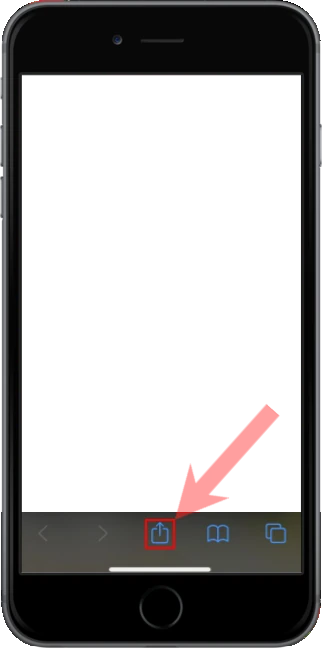
Apple iOS users

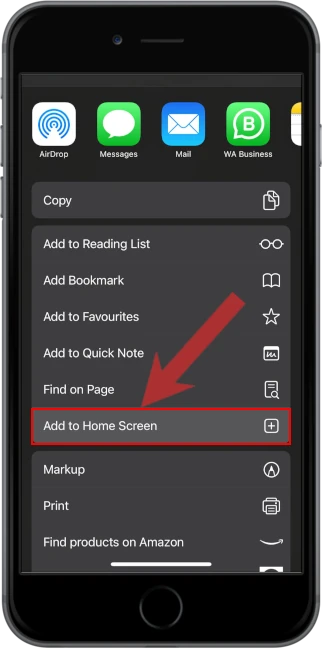
1. Open the menu located at the bottom of the screen

2. Select "Add to Home Screen" from the menu

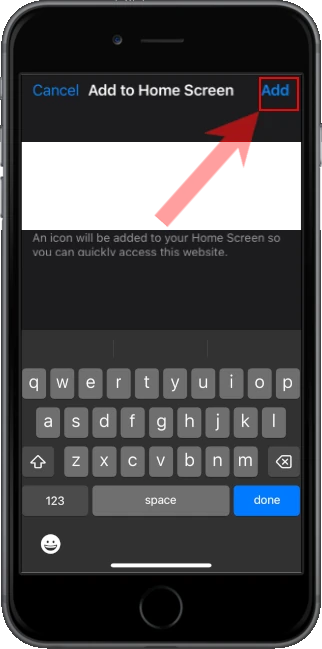
3. Confirm and Add the app to your home screen

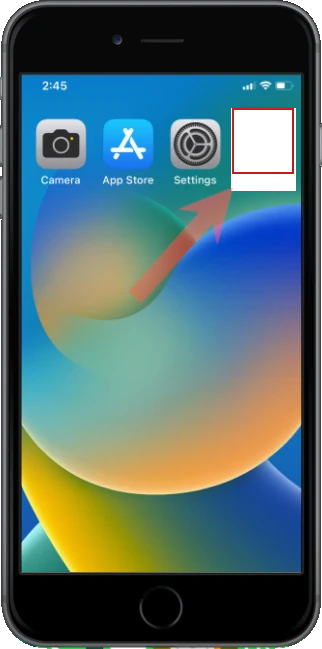
4. Open the app from your home screen